How to submit the filing on the IMPIC portal
After you generate the XML in ComunicaPro, import it into the IMPIC portal, generate and sign the PDF, and submit — within a 30-minute window.
ComunicaPro prepares the XML file; the submission is always done by you, on the official IMPIC portal, with your own authentication means. This guide follows the real portal process — always confirm on the official IMPIC page, which may be updated.
The XML is not submitted on its own
The XML file is used to import and fill in the portal form. What you submit at the end is a PDF generated by the portal and digitally signed by you (Cartão de Cidadão or Chave Móvel Digital). ⚠️ You have at most 30 minutes from downloading the PDF to submitting it signed again — this is where most people fail.
Step by step
Sign in to the IMPIC portal Reserved Area
At impic.pt → Reserved Area → Login. Access can be via IMPIC credentials, Autenticação.Gov (Cartão de Cidadão or Chave Móvel Digital) or your Tax Portal password.
In the "Serviços Online" menu, open "Comunicações Obrigatórias de Atividades Imobiliárias"
That is where the real-estate communication options live.
Open "Comunicação de Elementos de Transação Imobiliária ou Contrato de Arrendamento"
This is the communication under point b) of no. 1 of article 46 of Law 83/2017 (and points b) and c) of no. 1 of article 14 of Regulation 603/2021).
Import the XML: "Escolher Ficheiro", then "Carregar ficheiro XML"
Click "Escolher Ficheiro", select the XML generated by ComunicaPro and click "Carregar ficheiro XML" — the portal fills the form from the file. (Alternatively, "Pretendo começar um novo formulário" → "Continuar" fills everything by hand.)

Go through the tabs and review the imported data
Confirm each form panel and attach any documents the portal asks for. The data came from the XML, but the submission is always your responsibility.
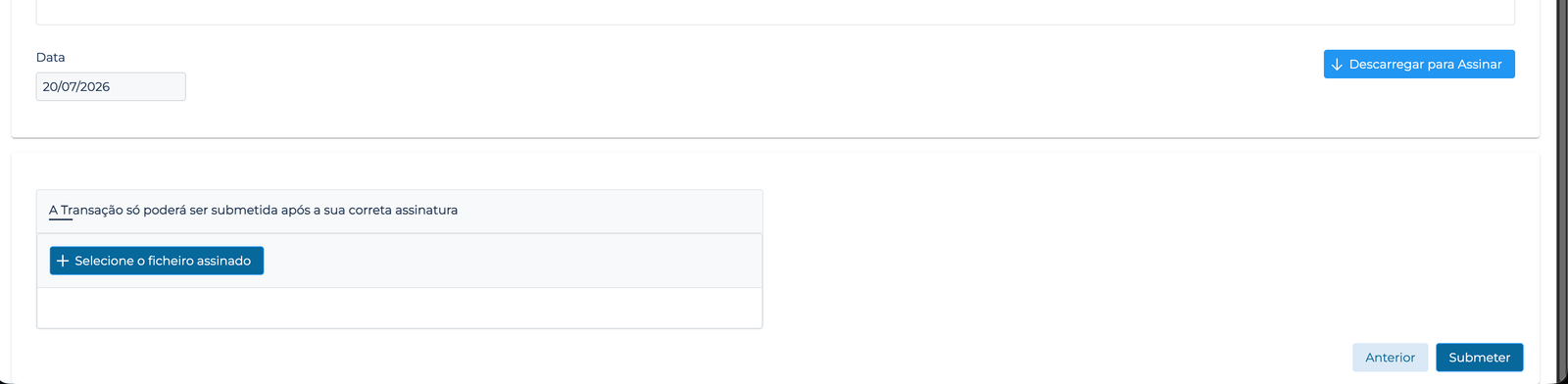
Confirm the "Data" (date) and click "Descarregar para Assinar"
At the end of the form, confirm the date and download the communication PDF. Open it without closing the form page (you can minimise it) — this PDF already comes signed by IMPIC.
Sign the PDF separately, with Cartão de Cidadão or Chave Móvel Digital
Sign the downloaded PDF with CC, CMD or another qualified certificate. Add only one signature, without overlapping the IMPIC signature and without touching the page margins.
Return to the form, "Selecione o ficheiro assinado" and "Submeter"
The transaction is only submitted after correct signing: click "Selecione o ficheiro assinado", choose the signed PDF and click "Submeter". Do it all within 30 minutes of downloading the PDF.
Save the submission receipt
The filing is only validly submitted once the portal issues a receipt with the date and time. Keep it for your records and log the final XML in ComunicaPro (under Compare) for calibration.
This guide is informative and follows the real process on the IMPIC portal, which may be updated — always confirm on the official page. ComunicaPro does not submit the filing for you nor interact with the portal on your behalf.
Already have your XML ready?
New filing